
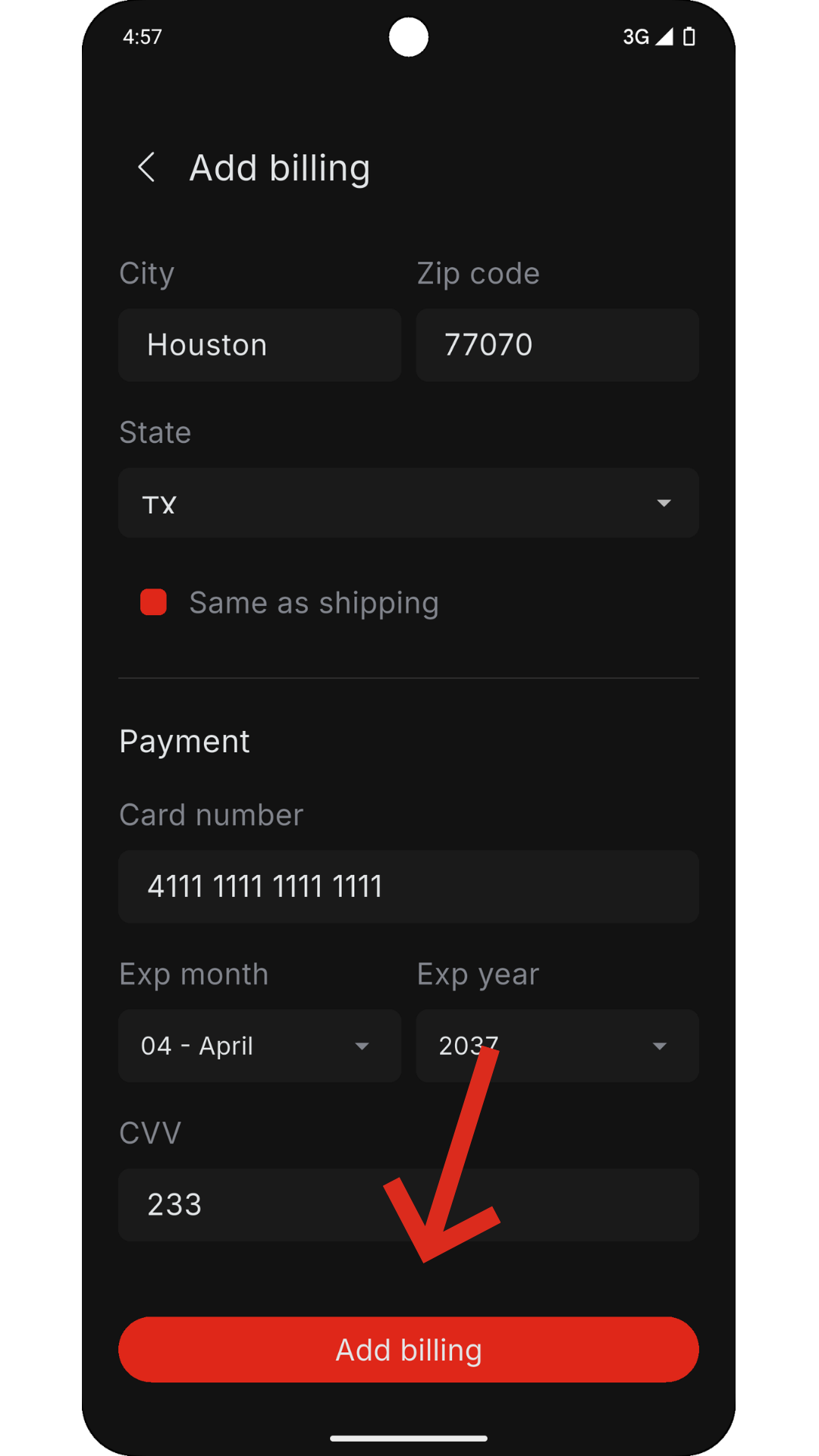
1. Billing Setup
To begin, you must create a billing profile:
- Go to Billing
- Fill out all required fields correctly
- Click Create
After creation:
- The screen will close automatically
- Your billing card will appear on the Billing page
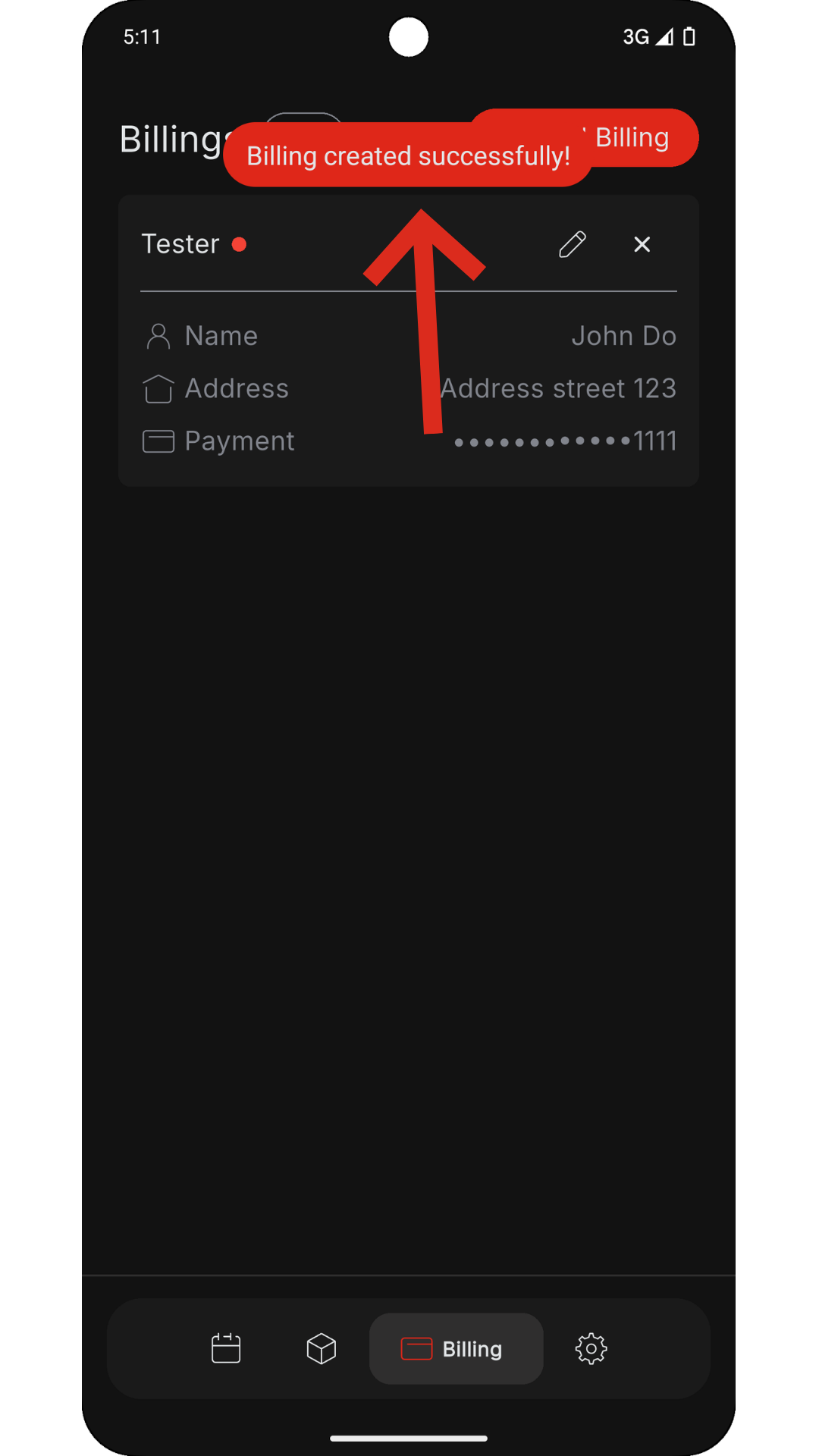
Billing status:
- Red dot = billing is NOT usable
- No red dot = billing is valid
Notes:
- It may take up to 60 seconds for validation
- Errors can spike during high traffic
Common errors:
- Address Invalid → Check Address Line 1
- Card Invalid / Expired → Verify card details
- Setup stuck (Setting up / Stopped):
- Wait 1–2 minutes
- If still stuck, edit the billing to trigger setup again
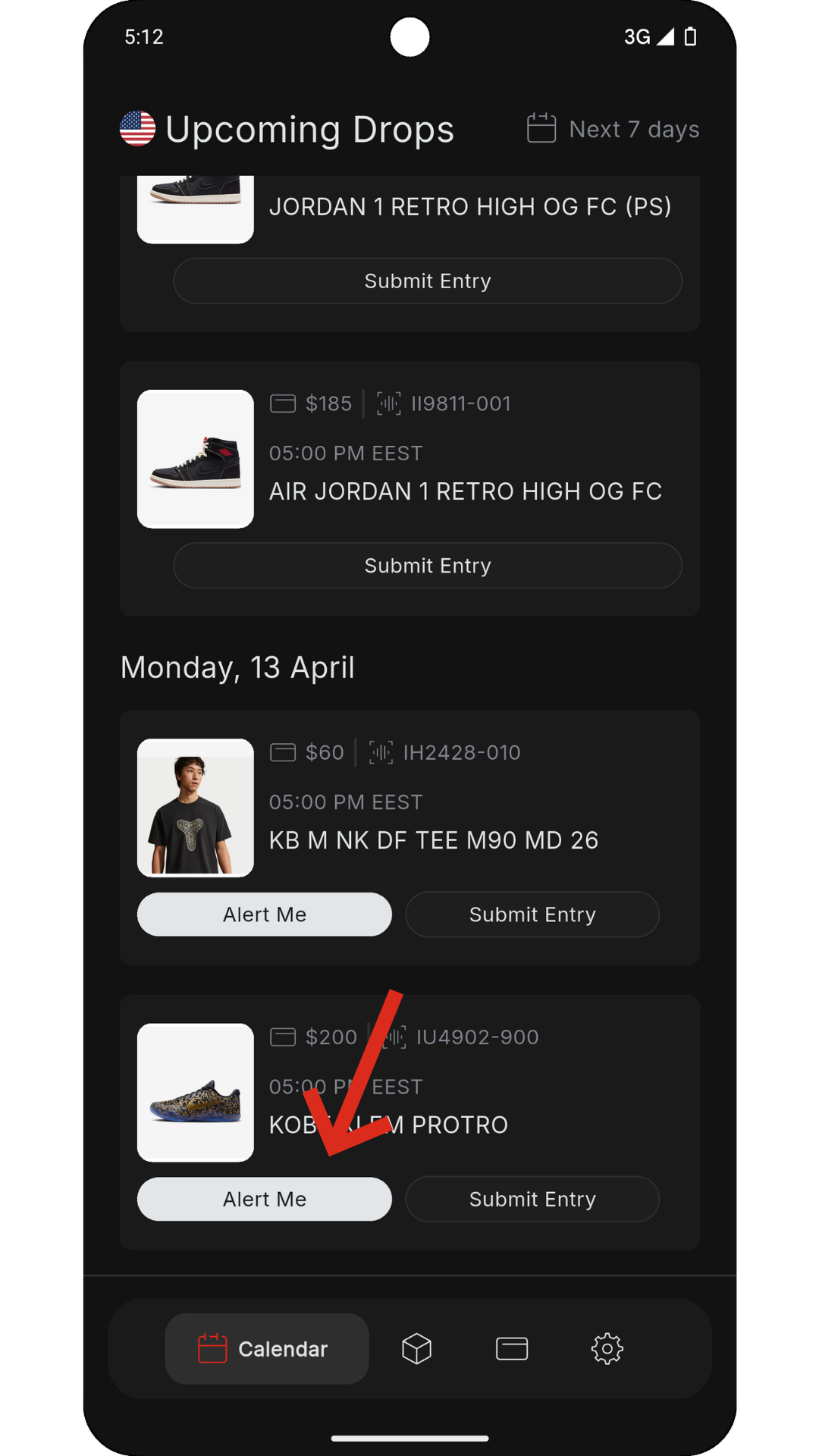
2. Calendar (Drops)
The Calendar shows drops for the next 7 days (including today).
Options:
- Alert Me → Sends notification 30 minutes before drop
- Submit Entry → Opens size selection (requires valid billing)
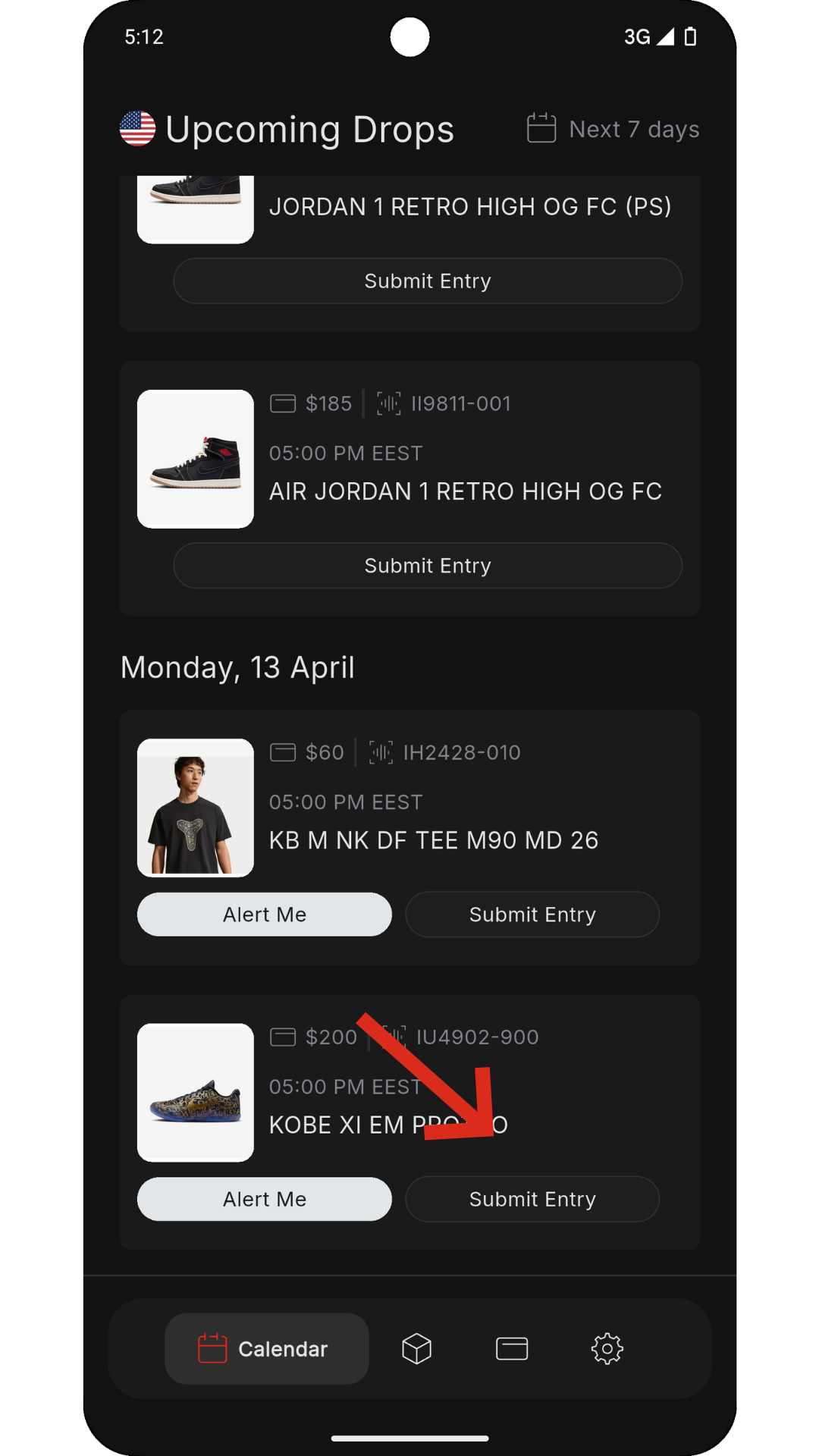
3. Creating an Entry
- Select your size:
- A SKU is any individual drop you select from the calendar. Each billing/profile gets one entry per unique SKU, and you can choose one size per SKU for that profile
- Click Create
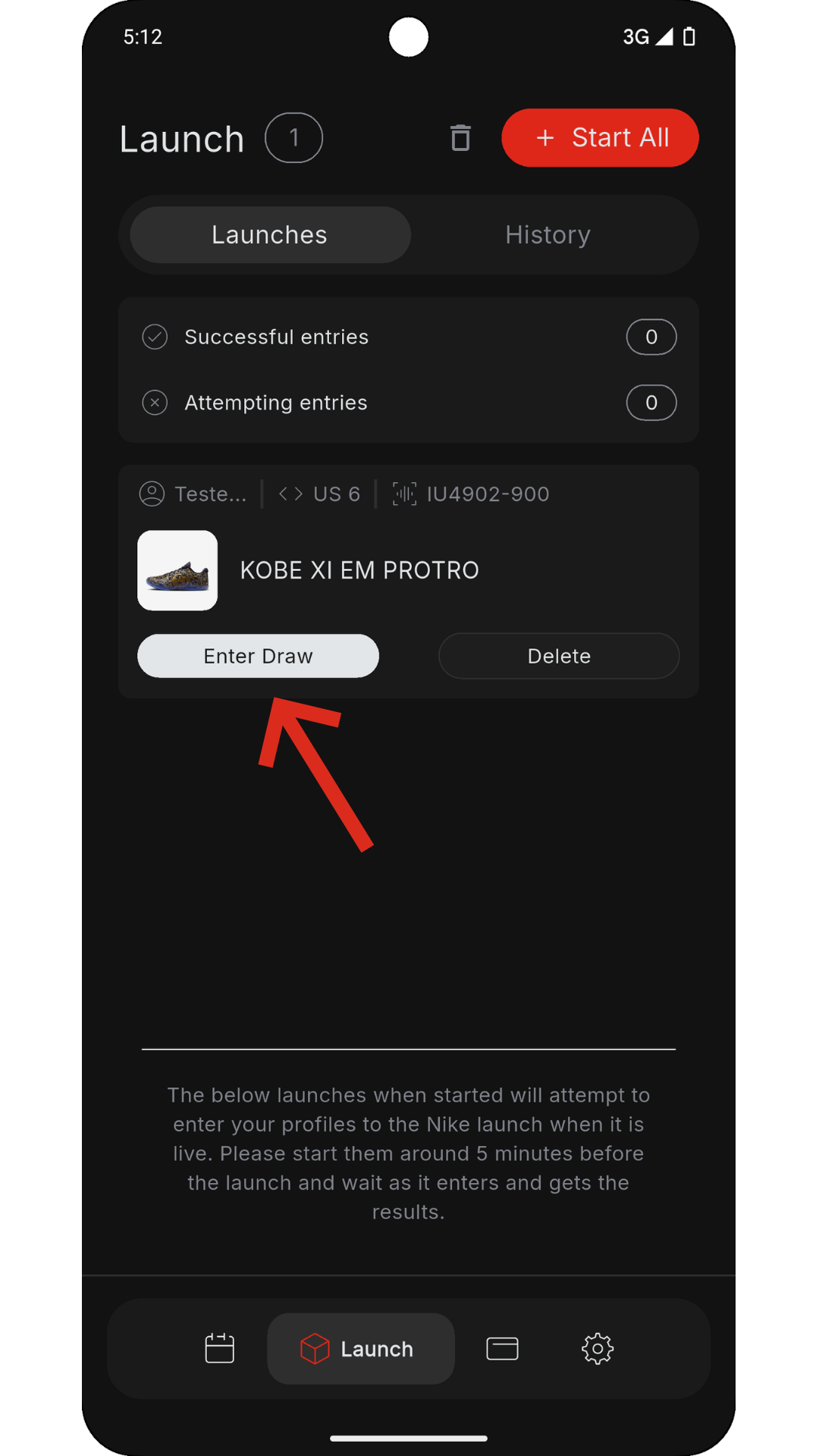
- This creates a Launch, visible in the Launch page.
4. Starting Entries
Recommended start times:
- Standard: 5 minutes before drop
- 10+ launches or multiple accounts: 10–15 minutes before
Start options:
- Start (on card) → Starts one entry
- Start All → Starts all entries with delays
Stop options:
- Stop (on card) → Stops one entry
- Stop All → Stops all entries
5. During Drop
- Once started, the Start button disappears
- A log card will appear showing activity
Results:
- Got ’Em (red) → Success
- Missed ’Em (grey) → Failed attempt
Timing:
- Drops can take seconds up to 2–10 minutes, depending on the type of release.
6. History & Tracking
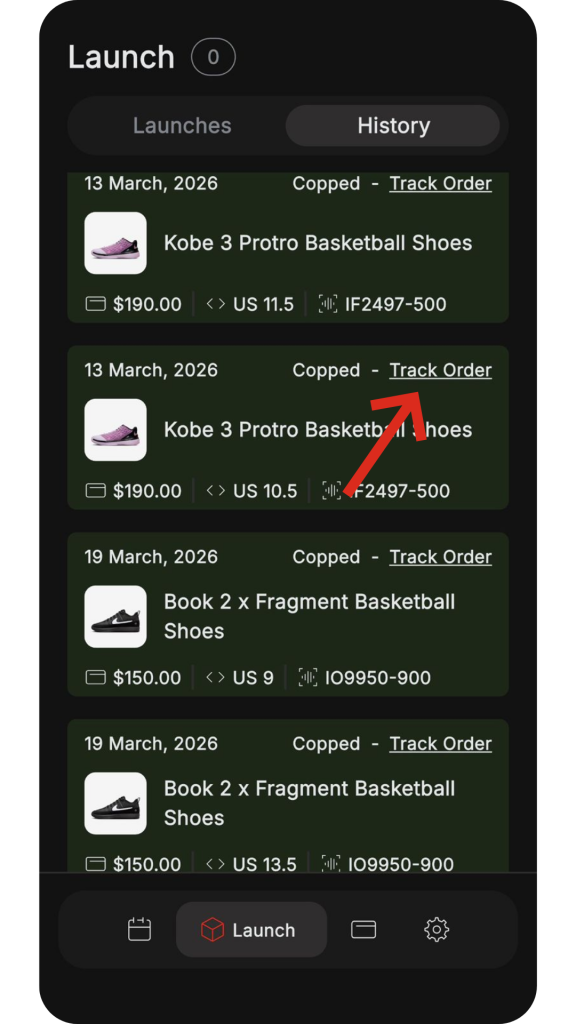
All entries (wins and losses) are stored in Launch → History
Tracking orders:
- Click Track Order
- Wait a few minutes
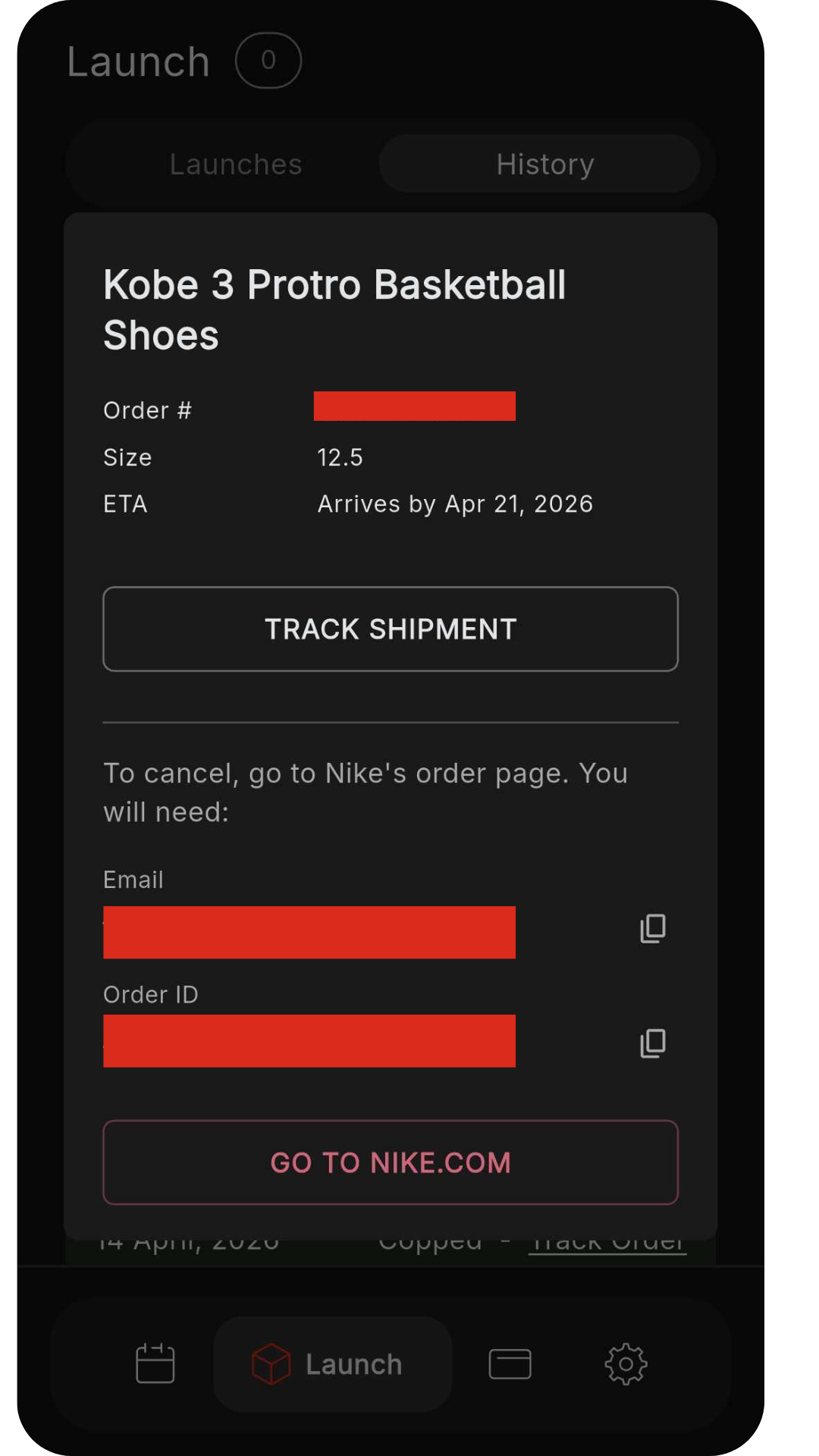
- A pop-up will show shipment info and options
7. Limits & Upgrades
Default:
- 1 billing
- 1 entry per unique SKU
To increase entries:
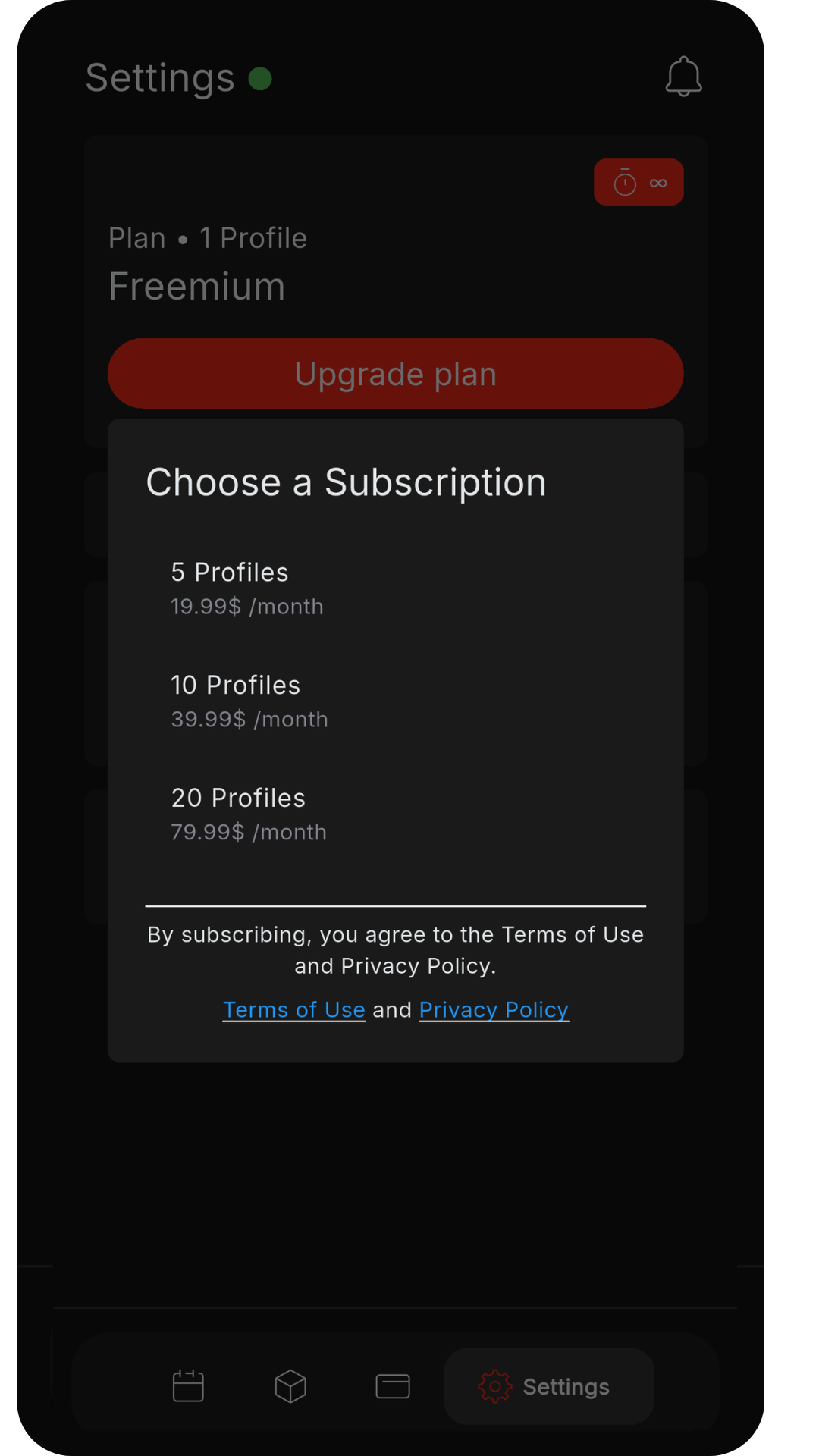
- Go to Settings
- Click Upgrade Subscription
- Choose a plan:
- 5 profiles
- 10 profiles
- 20 profiles
More profiles = higher entry rate
Note:
Requires App Store or Play Store access
8. Best Practices:
- Always confirm billing is valid before drops
- Start earlier if running multiple entries
- Monitor logs during drops
- Use alerts to stay ready
